
Unity Coroutine is one of the most useful features in Unity when you want to perform actions over time without stopping the rest of your game. Whether you want to create a delay before spawning an enemy, show a message for a few seconds, animate an object gradually, or wait for a player action, coroutines make these tasks easier.
If you have ever wondered how IEnumerator works, why Unity uses WaitForSeconds, or how to execute code after a specific delay, this guide is for you.
In this article, we will learn what Unity Coroutines are, why we use them, how to start and stop them, and how to use IEnumerator and WaitForSeconds with practical C# examples. We will also explore common mistakes and some useful tips for writing better coroutine code.
15+ Essential Unity Game Optimization Tips: Boost Performance & FPS
1. What Is a Unity Coroutine?
A Unity Coroutine is a special method that can pause its execution and continue later from where it stopped.
Normally, when a C# method runs, it executes its statements one after another until it finishes. However, sometimes we want to wait for a few seconds before executing the next statement.
For example:
- Wait 2 seconds before spawning an enemy.
- Display a game-over message for 3 seconds.
- Move an object gradually over time.
- Perform an action after an animation finishes.
- Create a countdown timer.
We can use a coroutine to handle these situations.
Why do we need Coroutines?
Imagine you want to display a message for 3 seconds and then hide it.
Without a coroutine, you might need to manage a timer inside the Update() method. But with a coroutine, you can write the logic in a simple sequence.
Example:
using UnityEngine;
using System.Collections;

public class CoroutineExample : MonoBehaviour
{
    void Start()
    {
        StartCoroutine(ShowMessage());
    }

    IEnumerator ShowMessage()
    {
        Debug.Log("Message Started");

        yield return new WaitForSeconds(3f);

        Debug.Log("Message Hidden");
    }
}
Output:
- Immediately: Message Started
- After 3 seconds: Message Hidden
Notice that Unity does not stop the entire game while waiting. Other scripts, animations, physics, and gameplay continue running.
That is the main advantage of using coroutines.
2. What Is IEnumerator in Unity?
IEnumerator is an important part of Unity Coroutines.
In simple words, IEnumerator allows a method to return values one at a time and pause its execution using the yield return statement.
Unity uses this functionality to manage coroutine execution.
When creating a coroutine, we generally use IEnumerator as its return type instead of void.
Example:
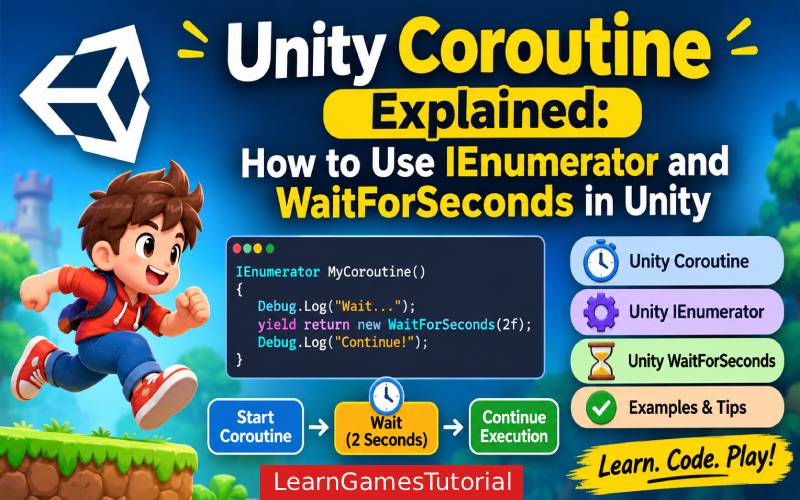
IEnumerator MyCoroutine()
{
    Debug.Log("Step 1");

    yield return new WaitForSeconds(2f);

    Debug.Log("Step 2");
}
Here is what happens:
- Unity executes the method and prints Step 1.
yield returntells Unity to pause this coroutine.WaitForSeconds(2f)makes it wait for approximately 2 seconds.- Unity resumes the coroutine.
- Step 2 is printed.
What is yield return?
yield return is a C# keyword used to pause the execution of an iterator method and return control to its caller.
In Unity, it is commonly used to tell a coroutine what it should wait for before continuing.
Some commonly used yield instructions are:
| Yield Instruction | Purpose |
|---|---|
yield return null |
Wait until the next frame |
WaitForSeconds(2f) |
Wait for 2 seconds of scaled game time |
WaitForSecondsRealtime(2f) |
Wait for 2 seconds of real time |
WaitUntil(condition) |
Wait until a condition becomes true |
WaitWhile(condition) |
Wait while a condition remains true |
We will explore some of these in the next sections.
3. How to Start and Stop a Unity Coroutine
Writing a coroutine is not enough. We also need to start it.
Unity provides the StartCoroutine() method to execute a coroutine.
How to Start a Coroutine
You can start a coroutine inside Start(), Update(), or any other method.
Example:
using UnityEngine;
using System.Collections;

public class CoroutineManager : MonoBehaviour
{
    void Start()
    {
        StartCoroutine(MyCoroutine());
    }

    IEnumerator MyCoroutine()
    {
        Debug.Log("Coroutine Started");

        yield return new WaitForSeconds(2f);

        Debug.Log("Coroutine Completed");
    }
}
In this example, StartCoroutine() starts the coroutine when the game begins.
How to Stop a Coroutine
Sometimes, we need to stop a coroutine before it finishes.
Unity provides the StopCoroutine() and StopAllCoroutines() methods.
Example:
using UnityEngine;
using System.Collections;

public class CoroutineManager : MonoBehaviour
{
    Coroutine myRoutine;

    void Start()
    {
        myRoutine = StartCoroutine(MyCoroutine());
    }

    IEnumerator MyCoroutine()
    {
        Debug.Log("Coroutine Started");

        yield return new WaitForSeconds(10f);

        Debug.Log("Coroutine Completed");
    }

    void Update()
    {
        if (Input.GetKeyDown(KeyCode.Space))
        {
            StopCoroutine(myRoutine);

            Debug.Log("Coroutine Stopped");
        }
    }
}
Here, the coroutine starts when the game begins. If the player presses the Space key, the coroutine stops before completing its 10-second wait.
Important: StopAllCoroutines() stops all coroutines running on the same MonoBehaviour component. Use it carefully if your script runs multiple coroutines.
4. How to Use Unity WaitForSeconds
WaitForSeconds is one of the most commonly used instructions in Unity Coroutines.
It allows you to pause a coroutine for a specific duration before executing the next statement.
The syntax is:
yield return new WaitForSeconds(seconds);For example:
yield return new WaitForSeconds(3f);This tells Unity to wait for approximately 3 seconds before continuing the coroutine.
Practical Example: Spawn an Enemy After a Delay
Suppose you are developing a 2D shooting game and want to spawn an enemy every 3 seconds.
You can easily achieve this using a coroutine.
using UnityEngine;
using System.Collections;

public class EnemySpawner : MonoBehaviour
{
    public GameObject enemyPrefab;
    public Transform spawnPoint;

    void Start()
    {
        StartCoroutine(SpawnEnemy());
    }

    IEnumerator SpawnEnemy()
    {
        while (true)
        {
            yield return new WaitForSeconds(3f);

            Instantiate(
                enemyPrefab,
                spawnPoint.position,
                spawnPoint.rotation
            );
        }
    }
}
How does this work?
- The coroutine starts when the game begins.
- It waits for 3 seconds.
- Unity creates an enemy at the specified spawn point.
- The loop repeats and waits for another 3 seconds.
- This process continues until the coroutine is stopped or its MonoBehaviour is disabled or destroyed.
This is a simple way to create enemy spawning systems, timed events, and repeating gameplay actions.
WaitForSeconds vs WaitForSecondsRealtime
Unity also provides WaitForSecondsRealtime.
Both instructions wait for a specified duration, but they behave differently when the game’s time scale changes.
| Feature | WaitForSeconds | WaitForSecondsRealtime |
|---|---|---|
| Uses Time.timeScale | Yes | No |
| Affected by game pause | Yes | No |
| Uses real-time duration | No | Yes |
| Common usage | Gameplay delays | Pause menus and real-time UI |
Example:
IEnumerator WaitExample()
{
    Debug.Log("Started");

    yield return new WaitForSeconds(3f);

    Debug.Log("Scaled time completed");

    yield return new WaitForSecondsRealtime(3f);

    Debug.Log("Real time completed");
}
If you set:
Time.timeScale = 0f;WaitForSeconds will stop progressing because the game is paused.
However, WaitForSecondsRealtime will continue counting even when Time.timeScale is zero.
When should you use them?
- Use
WaitForSecondsfor enemy spawning, gameplay delays, and timed game events. - Use
WaitForSecondsRealtimefor UI messages, pause menus, and actions that should continue during gameplay pauses.
5. Useful Unity Coroutine Examples: WaitUntil and WaitWhile
Apart from WaitForSeconds, Unity provides other yield instructions that help us control when a coroutine should continue.
WaitUntil
WaitUntil pauses a coroutine until a specified condition becomes true.
Example:
using UnityEngine;
using System.Collections;

public class WaitUntilExample : MonoBehaviour
{
    public bool playerReady = false;

    void Start()
    {
        StartCoroutine(WaitForPlayer());
    }

    IEnumerator WaitForPlayer()
    {
        Debug.Log("Waiting for player...");

        yield return new WaitUntil(() => playerReady);

        Debug.Log("Player is ready!");
    }
}
In this example, the coroutine waits until playerReady becomes true.
When to use WaitUntil?
- Wait until the player completes a task.
- Wait until an animation finishes.
- Wait until a loading process completes.
- Wait until a particular game condition is met.
WaitWhile
WaitWhile does the opposite of WaitUntil.
It pauses the coroutine while a specified condition remains true.
Example:
using UnityEngine;
using System.Collections;

public class WaitWhileExample : MonoBehaviour
{
    public bool isLoading = true;

    void Start()
    {
        StartCoroutine(LoadingProcess());
    }

    IEnumerator LoadingProcess()
    {
        Debug.Log("Loading started...");

        yield return new WaitWhile(() => isLoading);

        Debug.Log("Loading completed!");
    }
}
Here, the coroutine continues only when isLoading becomes false.
When to use WaitWhile?
- Wait while the player is performing an action.
- Wait while a loading process is running.
- Wait while a game is in a particular state.
- Wait while an animation or transition is active.
6. Unity Coroutine Best Practices and Common Mistakes
Coroutines are useful, but using them incorrectly can create unexpected behaviour or unnecessary overhead.
Here are some important things to remember when working with Unity Coroutines.
1. Do Not Use Coroutines for Everything
A coroutine is useful when you need to perform an operation over multiple frames or wait for something.
For simple calculations or operations that should happen immediately, a normal method is usually a better choice.
2. Remember to Stop Unnecessary Coroutines
If a coroutine is no longer needed, stop it to avoid unwanted execution.
For example, if an enemy is destroyed, you should make sure its ongoing gameplay routines are not left running unnecessarily.
3. Understand Time.timeScale
Remember that WaitForSeconds uses scaled time.
If you pause the game using Time.timeScale = 0, the coroutine will not continue past that wait until time starts progressing again.
Use WaitForSecondsRealtime when you need real-time delays.
4. Avoid Creating Too Many Coroutines Unnecessarily
Coroutines are generally lightweight, but they still have some overhead and can create garbage collection allocations.
Avoid creating large numbers of unnecessary coroutines, especially in frequently executed gameplay systems.
5. Remember That Coroutines Are Not Threads
A Unity Coroutine does not run on a separate thread.
It executes through Unity’s main thread scheduling system and pauses between execution points.
If you need actual parallel processing for CPU-intensive work, consider Unity’s Job System or other appropriate multithreading solutions.
6. Use Coroutine Handles When You Need Control
Instead of relying only on StopAllCoroutines(), keep a reference to a specific coroutine when you need to stop or manage it individually.
Coroutine routine;

void Start()
{
    routine = StartCoroutine(MyCoroutine());
}

void StopMyRoutine()
{
    if (routine != null)
    {
        StopCoroutine(routine);
        routine = null;
    }
}
This makes coroutine management easier, especially when a script runs multiple routines.
Also Read:
Why coroutine not working? 10 common problem and solution of unity coroutine
Conclusion
Unity Coroutine is a powerful feature that makes it easier to manage time-based actions, delays, and operations that need to run across multiple frames.
By understanding Unity IEnumerator, yield return, and Unity WaitForSeconds, you can write cleaner and more manageable gameplay scripts without putting unnecessary timer logic inside the Update() method.
Let’s quickly revise what we learned in this article:
- Unity Coroutine: Allows a method to pause and continue its execution later.
- Unity IEnumerator: The return type commonly used when creating coroutine methods.
- yield return: Pauses coroutine execution and returns control to Unity.
- StartCoroutine(): Starts a coroutine.
- StopCoroutine(): Stops a specific coroutine.
- StopAllCoroutines(): Stops all coroutines running on the same MonoBehaviour.
- WaitForSeconds: Waits for a specified duration using scaled game time.
- WaitForSecondsRealtime: Waits using real time, even when the game is paused.
- WaitUntil: Waits until a condition becomes true.
- WaitWhile: Waits while a condition remains true.
If you are developing Unity games, learning coroutines will help you handle enemy spawning, animations, countdowns, gameplay events, and many other time-based operations more efficiently.
Thanks for reading!
Suggested Articles :
- WaitForSeconds vs Coroutine vs Thread.Sleep
- Unity Awake vs Start: What’s the Difference and When to Use Each?
- Unity OnCollisionEnter, Stay, Exit Events Explained
I hope this tutorial helped you understand Unity Coroutines and how to use them in your projects.
If you found this article helpful:
- 👍 Like this article to support our work.
- 🔄 Share it with other Unity developers.
- 💬 Leave a comment if you have any questions or want to share how you use coroutines in your projects.
Keep learning and keep developing awesome games!
Happy Game Development! 🚀
