Unity Awake vs Start
If you are new to Unity scripting, you have probably seen both Awake() and Start() inside a MonoBehaviour script. At first, they may look almost the same because both are commonly used to initialize variables and prepare a GameObject before the game starts.
So, what is the actual difference between them? And more importantly, when should you use Awake and when should you use Start?
In this guide, we will explain Unity Awake vs Start in simple terms, look at the Unity lifecycle Awake Start order, and use practical examples that you can apply directly to your Unity projects.
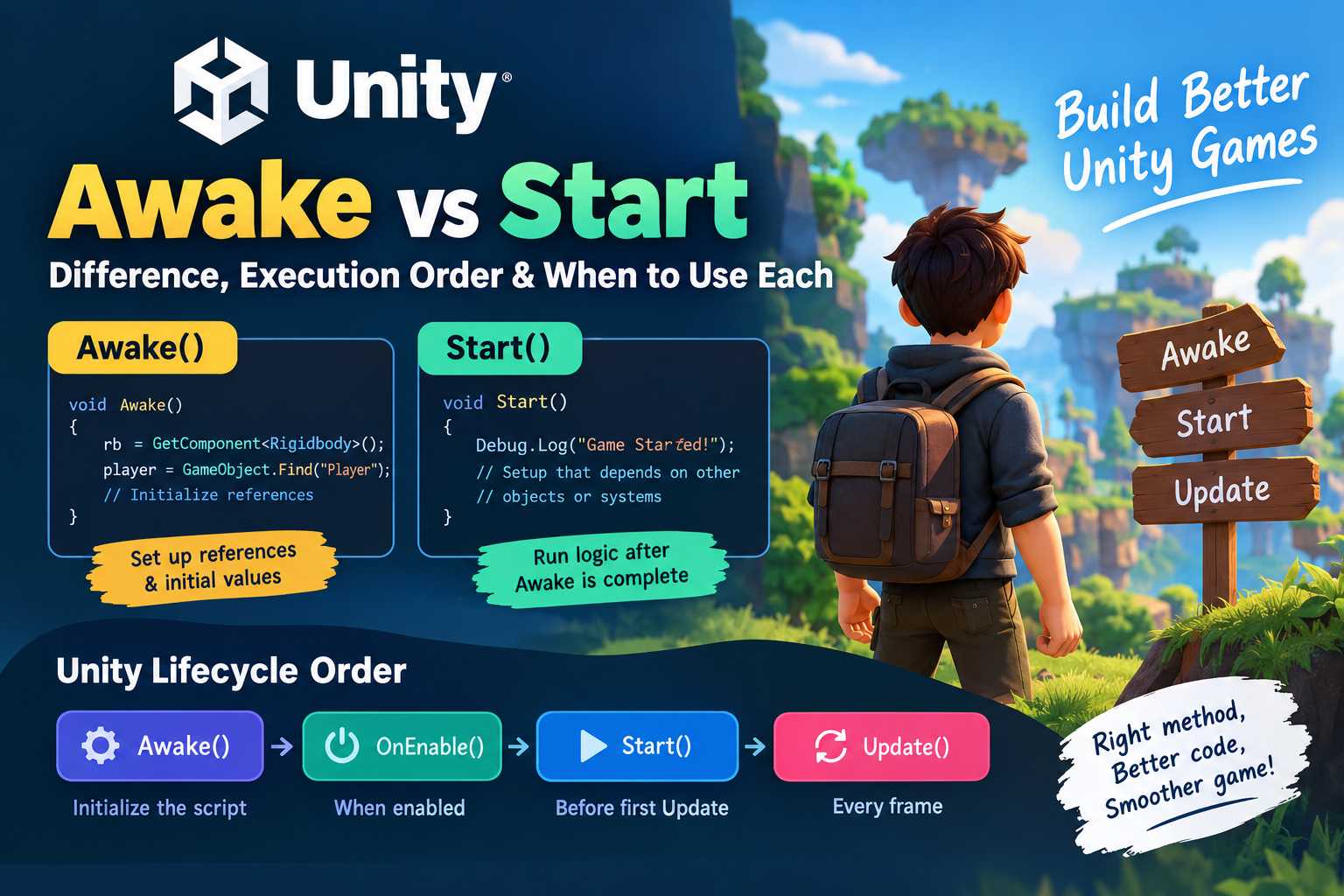
What Is Awake() in Unity?
Awake() is a Unity MonoBehaviour event function that is called when a script instance is initialized. It is commonly used for setting up variables, references, and the initial state of a component.
For example, if your player script needs to find a component or store a reference before the rest of the game starts, Awake() is often a good place to do it.
using UnityEngine;

public class Player : MonoBehaviour
{
    private Rigidbody rb;

    void Awake()
    {
        rb = GetComponent<Rigidbody>();
    }
}
Here, the Rigidbody reference is prepared when the script is initialized. This means other methods in the same script can use rb without repeatedly calling
GetComponent().
Unity calls Awake before Start. However, you should not assume that Awake on one GameObject will run before Awake on another GameObject unless you have deliberately configured the execution order.
What Is Start() in Unity?
Start() is another MonoBehaviour event function. It is called before the first frame update when the script is enabled. Start is useful when your initialization depends on other objects or scripts already completing their Awake methods.
using UnityEngine;

public class GameManager : MonoBehaviour
{
    public Player player;

    void Start()
    {
        Debug.Log("Game is ready");
        Debug.Log(player.name);
    }
}
For normal scene objects, Unity calls Awake on the relevant scripts before calling Start. This makes Start a useful place for initialization that depends on other components having already completed their basic setup. :contentReference[oaicite:2]{index=2}
Unity Awake vs Start: The Main Difference
The easiest way to remember the Unity Awake vs Start difference is this:
- Awake() is mainly for initializing the object itself.
- Start() is mainly for initialization that can happen after Awake has finished.
Think about a player character. In Awake(), you can find and store its components. In Start(), you can perform setup that depends on other game systems being ready.
A simple example would look like this:
using UnityEngine;

public class Player : MonoBehaviour
{
    private Rigidbody rb;

    void Awake()
    {
        // Get references needed by this object
        rb = GetComponent<Rigidbody>();
    }

    void Start()
    {
        // Start gameplay-related initialization
        Debug.Log("Player is ready");
    }
}
Unity Awake and Start Order Explained
The basic Unity Awake and Start order is:
- Awake()
- OnEnable() when applicable
- Start()
- Update()
The important part is that Awake happens before Start for the initial scene setup. Unity’s execution order documentation explains that Awake is called before Start, and Start occurs before the first Update call.
For example, if you have two scripts:
public class Player : MonoBehaviour
{
    void Awake()
    {
        Debug.Log("Player Awake");
    }

    void Start()
    {
        Debug.Log("Player Start");
    }
}
You will see:
Player Awake
Player Start
However, don’t assume that every GameObject’s Awake runs in a particular order. If two different GameObjects both have Awake(), Unity does not guarantee which one runs first by default.
When Should You Use Awake()?
Use Awake() when you need to prepare the object or store references that the script will need during its lifetime.
Common examples include:
- Getting component references with GetComponent().
- Setting initial variable values.
- Finding and storing references to important objects.
- Setting up internal state.
- Preparing a manager or singleton.
For example:
void Awake()
{
    playerHealth = GetComponent<PlayerHealth>();
    animator = GetComponent<Animator>();
    currentScore = 0;
}
This keeps the basic object setup in one place.
When Should You Use Start()?
Use Start() when your initialization should happen after Awake has completed. This is especially useful when one script needs to use data or references prepared by another script.
public class Enemy : MonoBehaviour
{
    public Player player;

    void Start()
    {
        if (player != null)
        {
            Debug.Log("Player found: " + player.name);
        }
    }
}
Start is also useful for starting gameplay systems, registering listeners, or performing setup that does not need to happen during the object’s earliest initialization stage.
Unity Start vs Awake: A Practical Example
Imagine you are creating a simple shooting game. Your weapon needs a reference to its Animator and AudioSource, while the actual shooting setup needs the player to be ready first.
public class Weapon : MonoBehaviour
{
    private Animator animator;
    private AudioSource audioSource;

    void Awake()
    {
        animator = GetComponent<Animator>();
        audioSource = GetComponent<AudioSource>();
    }

    void Start()
    {
        Debug.Log("Weapon is ready to fire");
    }
}
In this example, Awake handles the basic references, while Start handles the next stage of initialization.
This simple separation can make your scripts easier to understand and maintain, especially as your game becomes larger.
What Happens If a GameObject Is Disabled?
One important detail in the Unity lifecycle Awake Start behavior is that Awake and Start are not exactly identical when objects or scripts are disabled.
Awake is called when the script instance is initialized, while Start is called when the script is enabled before its first Update. This means Start can be delayed if the GameObject or script is not enabled when it is initialized.
This becomes particularly useful when working with UI panels, enemies, menus,
object pools, and prefabs that are activated later during gameplay.
Awake vs Start: Which One Should You Use?
There is no rule that says you must always use Awake or always use Start. The better choice depends on what you are initializing.
A simple rule is:
- Use Awake() for setting up the object and getting references.
- Use Start() for initialization that should happen after Awake.
If you remember this basic rule, most Unity Start vs Awake questions become much easier to answer.
Awake vs Start vs Update
If you are learning the Unity lifecycle, it is also useful to understand how these
functions fit together.
- Awake() – Initialize the script and prepare references.
- Start() – Perform initialization before the first frame update.
- Update() – Run logic repeatedly once per frame.
For example, if you are building a player controller, Awake can find the required components, Start can prepare the gameplay state, and Update can process player input and movement.
If you are also learning Unity input handling, you may find our guide on Unity New Input System useful.
For performance-related Unity development, understanding concepts such as Unity Object Pooling can also help when working with frequently created and destroyed objects.
Common Mistakes With Awake and Start
1. Assuming Awake Has a Fixed Order
Do not assume that Awake on GameObject A will always execute before Awake on GameObject B. Unity does not guarantee that order by default.
2. Putting Everything in Awake
Awake should not become a place where every initialization task is placed. If something can safely happen after all Awake calls have completed, Start may be a better choice.
3. Using Start for Basic Component References
If a script simply needs to cache its own components, Awake is usually a clean choice:
void Awake()
{
    rb = GetComponent<Rigidbody>();
}
Final Thoughts
Understanding Unity Awake vs Start is one of those small Unity concepts that becomes very important as your projects get bigger.
The simplest way to remember the difference is: Awake prepares the object, while Start prepares the gameplay logic that can run after Awake.
Keep your component and internal reference setup in Awake, and use Start when your initialization can depend on other objects having completed their Awake methods. This approach makes your Unity scripts easier to organize and reduces unexpected
initialization problems.
Frequently Asked Questions
1. Which comes first, Awake or Start in Unity?
Awake comes before Start. Unity calls Awake before any Start functions for the initial scene setup. Start is then called before the first Update.
2. Should I use Awake or Start in Unity?
Use Awake for basic initialization and caching references. Use Start when the initialization can happen after Awake or depends on other scripts being initialized.
3. Is Awake called before Start on every GameObject?
For the normal initial scene setup, Unity calls Awake before Start. However, you should not rely on a particular order between Awake methods belonging to different GameObjects unless you explicitly configure execution order.
4. Can I use Awake and Start together?
Yes. It is very common to use both. For example, you can use Awake to get component references and Start to initialize gameplay systems.
5. Is Awake faster than Start?
Awake is not simply a faster version of Start. The main difference is their position in Unity’s lifecycle and when they are called. Choose the method based on initialization requirements rather than speed.
6. Can Start be a Coroutine in Unity?
Yes. Unlike Awake, Start can be declared as an IEnumerator and used as a coroutine.
This allows you to yield and delay part of the Start process.
