
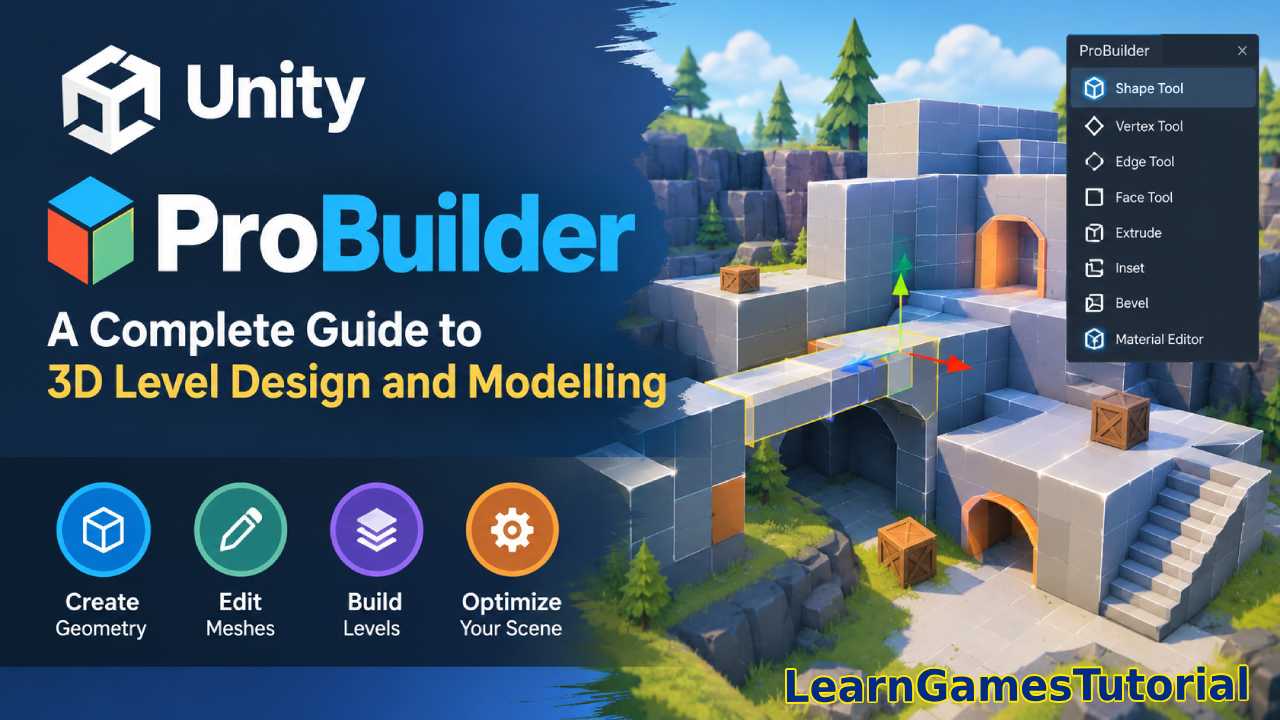
With Unity ProBuilder you can create and edit 3d geometry within the unity editor. This is great for anyone that wants to create levels in unity. Or just make simple objects such as rooms and platforms.
ProBuilder can save you a lot of time when starting out on your unity game. Rather than making all of your basic objects in blender or maya you can create them inside of your unity project.
What Is Unity Probuilder?
ProBuilder is a unity package that allows you to model and create levels inside of the unity editor. You can make and edit meshes using it’s various tools.
With proBuilder you can quickly create walls, floors, stairs, platforms, hallways and even buildings. Once you have your basic environment created you can swap out these objects for more polished assets.
Since you can make all of this inside of unity you are able to playtest your levels as well.
Why Use Probuilder in Unity?
Usually when modeling you have to create your object in a program. Export it and bring it into unity to make any modifications. Which is fine if your trying to make detailed assets. But if your trying to make simple objects for a game it can take a bit longer.
Using ProBuilder will allow you to make objects quicker.
- Some things you can use it for:
- Create Objects
- Modify Vertices/Edges/Faces
- Blockout your levels
- Make Walls
- Make Floors
- Make Platforms
- Make Hallways
- Create Stairs
- Playtest your Levels
- Change objects within unity
Which can come in handy when blocking out your levels.
How to Install Unity Probuilder
ProBuilder is available through unity’s package manager.
Go to your unity project and click window > package manager. You can then search for proBuilder and download the package that corresponds to your version of unity.
You now have access to proBuilders tools inside of unity.
Depending on what version of unity you have the location of these tools may differ. So be sure to follow instructions for your version of unity.
Making Your First Object With Probuilder
Now that you have proBuilder installed you can make your first object.
There are many shapes you can make inside of unity using proBuilder. Cubes are probably the most common shape people will start with.
From there you can make a wall out of the cube. Change it’s size and modify it to fit your needs.
As you can see you can create many objects from just a single cube.
Editing Vertices
Vertices are individual points that can be selected and edited.
Using proBuilder you can select these vertices and move them around inside of the unity editor. Which will change the shape of your object.
You can use this to create objects that may be difficult to create using just primitive shapes.
Take a look at this example we can take our cube and modify some of the vertices to create a ramp.
This gives us more flexibility then just scaling a standard unity gameobject.
Editing Edges
Edges are used to connect two vertices. They can also be selected and edited using proBuilder.
Just like with vertices you can select and move edges around to change the shape of your object.
Which can come in handy when trying to create architectural features in your environment.
Here I’ve selected one edge of my wall and changed it’s shape.
Editing Faces
Faces are what make up your 3d mesh. There are also many things you can do with faces using proBuilder.
You can select and edit your faces to create more objects. Or change the surface of your mesh.
There are many things you can do with faces which will help when trying to create rooms.
For example we can take our face and edit it to create a door.
Learning how to edit these different aspects of a mesh will help you understand how proBuilder works.
Using Probuilder to Create Levels
As mentioned earlier proBuilder can be very helpful when creating levels.
You can block out your entire level using simple shapes. Then playtest to see if your happy with the layout of your level.
Maybe you want to know if your hallway is too small. Or if your characters can jump a certain distance. All of these can be answered by using proBuilder to create your levels.
Using Probuilder to Prototype Games
Another reason to use proBuilder is for prototyping.
Let’s say you want to create a first person shooter. You can create the entire level using proBuilder and begin playtesting your game.
Once you have your level blocked out you can add your player and weapons. As well as enemies and any other gameplay features.
Then if your not happy with your level you can easily change it.
ProBuilder allows you to find these flaws in your level before spending hours on 3d modeling.
Making Stairs With Probuilder
Stairs are another example of something you can make with proBuilder.
Rather than making each step in an external program. You can create your stairs and change the dimensions of each step in unity.
Depending on your version of proBuilder this process may differ. But you should be able to make a set of stairs.
Which you can use to create your levels and playtest how your character moves through them.
Probuilder and Materials
You can use materials with your proBuilder objects as well.
By applying different materials you can distinguish between objects in your level.
You could use one material for your walls and another for your floors. Or maybe you want to use different materials to signify certain areas in your level.
Once your level is complete you can replace these materials with your final assets.
Probuilder and Physics
Not only can you use proBuilder to create your levels. You can also use it to create colliders.
By adding colliders to your walls and floors you can begin playtesting your game.
Of course you may want to use more optimized meshes when making your final levels. But proBuilder can be used to playtest your game.
Probuilder for First Person Games
When creating first person games it can be helpful to use proBuilder.
You can quickly create your rooms, hallways, doors and other objects. Then begin playtesting to see how your game plays.
Speed, shooting distance and enemy placement can all be determined when playing your level.
Which can save you time when actually creating your final environment.
Probuilder for Third Person Games
Just like first person games proBuilder can be used for third person games as well.
By creating your levels you can see if your camera works in certain areas. Maybe your camera clips through walls or doesn’t rotate properly around objects.
All of these issues can be found by playtesting your level.
Probuilder Vs Other 3d Programs
While proBuilder can be very useful it’s not going to replace other 3d programs.
You still need to use other programs to create more detailed assets. But proBuilder can be used to speed up your workflow when making levels.
Use proBuilder to blockout your levels and then create your final assets in a 3d program.
Tips When Using Probuilder
Try to keep your objects simple when using proBuilder.
Don’t worry about making pretty objects just focus on creating your level. Once you are satisfied with your level you can start making more detailed objects.
Also try to name your gameobjects properly. As your level grows it can become hard to keep track of everything.
Test your level as often as you can. You may think your level looks great in the scene view but once you play it you may find that it feels off.
Problems With Probuilder
There can be some issues that arise when using proBuilder.
If you select the wrong vertex/edge/face you may end up messing up your object. Just be sure to select the correct one and double check in the scene view.
Another problem is that you can over complicate your objects. Since its so easy to add on to your mesh. Try not to add to much detail when blocking out your level.
Also if your following a tutorial they may not line up with your version of unity. ProBuilder has changed some of it’s menus over time.
Should I Use Probuilder?
If your just starting out with unity I would recommend using proBuilder. It will teach you how to model and edit 3d objects.
Once you learn how to edit vertices, edges and faces you will have a better understanding of how 3d objects are made.
It’s also a good tool to have if your trying to create a game and want to prototype it.
Just remember that you shouldn’t be making all of your objects with proBuilder.
Also Check:
